
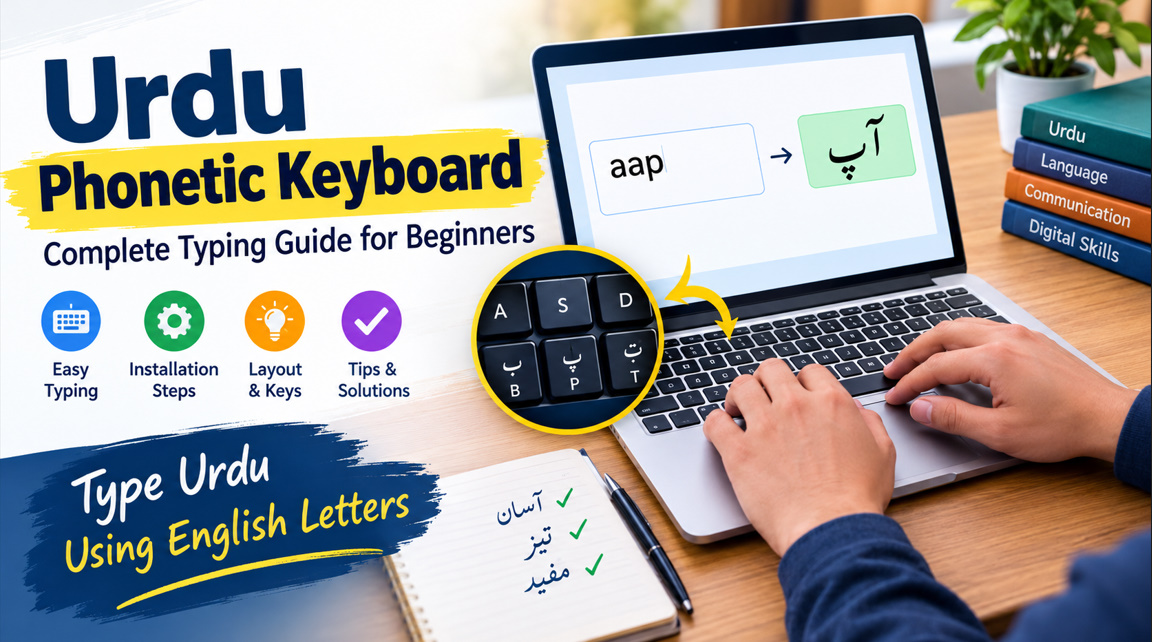
What Is an Urdu Phonetic Keyboard?
An Urdu phonetic keyboard is a typing system that helps users write Urdu by matching English keyboard keys with Urdu letters or sounds. Instead of memorizing an unfamiliar keyboard layout, beginners can use familiar QWERTY keys to enter Urdu text. This makes Urdu typing more accessible for students, writers, teachers, and everyday computer users.
For example, a phonetic layout may map the English letter A to ا, B to ب, and M to م. Exact key mappings depend on the keyboard layout or software being used. Once you learn the basic arrangement, you can type Urdu sentences, messages, documents, and online content more comfortably.
- Uses familiar English keyboard keys.
- Makes Urdu typing easier for beginners.
- Supports Urdu text composition.
- Works with compatible typing software.
- Reduces the need to memorize traditional layouts.
- Helps create Urdu documents and messages.
- Supports digital communication in Urdu.
- Can be used on compatible computers and phones.
How Does an Urdu Phonetic Keyboard Work?
An Urdu keyboard works by assigning Urdu characters to familiar keys or by converting Roman Urdu input into Urdu script. The first method follows a fixed keyboard mapping, while the second uses transliteration technology to interpret the words you type. Both approaches help users produce Urdu text without manually selecting every character.
For instance, a fixed phonetic layout may let you type individual letters using corresponding English keys. An online Urdu transliteration tool may instead convert a word such as “kitab” into کتاب after you enter it. These methods are related but different, so understanding which system you are using helps you avoid confusion.
- Recognizes keyboard input.
- Maps keys to Urdu characters.
- May support Roman Urdu transliteration.
- Produces Urdu Unicode text.
- Supports ordinary Urdu sentences.
- Can include additional character combinations.
- May offer predictive text or suggestions.
- Requires checking spelling and context.
Benefits of Using an Urdu Phonetic Keyboard
One of the biggest benefits of an Urdu phonetic keyboard is its beginner-friendly design. People who already type in English can often understand the basic concept quickly because the layout uses familiar keys. It can make every day Urdu writing less intimidating and help users move from Roman Urdu to Urdu script when preparing messages or documents.
Phonetic Urdu typing is also useful for education, blogging, office work, and social communication. Writers can prepare Urdu articles, students can complete assignments, and businesses can create Urdu-language notices. When the keyboard produces Unicode text, the content can generally be copied, searched, edited, and shared across compatible applications.
- Simplifies the Urdu typing process.
- Helps beginners learn letter placement.
- Supports Urdu-language blogging.
- Makes messaging more convenient.
- Helps students prepare assignments.
- Supports office documents and reports.
- Enables reusable Unicode text.
- Encourages digital Urdu communication.
How to Install an Urdu Phonetic Keyboard on Windows
To type Urdu on Windows, open Settings and navigate to Time & language, followed by Language & region. Add Urdu as a language and review the available keyboard options. Windows includes a standard Urdu layout, but it may not follow phonetic key mappings. If you specifically want phonetic typing, you may need a compatible phonetic keyboard layout.
After installation, switch between your available keyboard layouts using the language indicator on the taskbar or the Windows key plus Spacebar. Open a text editor and test a few characters before writing a complete document. If the letters differ from your expectations, check whether you selected the phonetic layout rather than the standard Urdu keyboard.
- Open Windows Settings.
- Select Time & language.
- Navigate to Language & region.
- Add the Urdu language.
- Review the installed keyboard layouts.
- Install a compatible phonetic layout if needed.
- Press Windows + Space to switch layouts.
- Test the keyboard in a text editor.
Using an Urdu Phonetic Keyboard on Mac and Mobile
Mac users can add an Urdu input source through System Settings and Keyboard settings. The available layouts depend on the operating system version, so review the layout description before selecting one. If you prefer typing with English-style keys, choose a compatible QWERTY or phonetic option when available, then test its character mappings in a document.
On Android and iPhone, Urdu typing is usually available through the device’s keyboard settings. Add an Urdu keyboard, select the preferred layout if multiple choices are offered, and switch languages using the keyboard’s language control. Some keyboards also provide transliteration, suggestions, or voice input, but these features vary by device, app, and language support.
- Add Urdu through your Mac keyboard settings.
- Check the available Urdu input sources.
- Open keyboard settings on Android.
- Add Urdu through your keyboard app.
- Open Settings on your iPhone.
- Select General and then Keyboard.
- Add an available Urdu keyboard.
- Test typing in a messaging or notes app.
Urdu Phonetic Keyboard vs. Standard Urdu Keyboard
A phonetic Urdu keyboard is designed around familiar sounds or English-key associations, while a standard Urdu keyboard follows its established character arrangement. The main difference is how characters are assigned to keys. Users who already type comfortably in English may find phonetic input easier to learn, whereas experienced Urdu typists may prefer a standard layout they already know.
Neither option is universally best. Your choice depends on your typing experience, preferred software, and the layout required by your workplace or school. It is also important to distinguish a fixed phonetic keyboard from Roman Urdu transliteration, which predicts Urdu words from Latin-letter input and may offer several spelling suggestions.
- Phonetic layouts emphasize familiar key associations.
- Standard layouts use a different key arrangement.
- Transliteration converts Roman Urdu into Urdu script.
- Key mappings can vary between tools.
- Experienced typists may prefer familiar layouts.
- Beginners may appreciate phonetic input.
- Both methods can produce Urdu text.
- Test the layout before committing to it.
Practical Urdu Phonetic Typing Tips for Beginners
The easiest way to learn Urdu phonetic typing is to begin with short words and common letters. Practice a few minutes each day and gradually move to complete sentences. If you use a fixed keyboard layout, keep a character map nearby until the most frequent keys become familiar. For transliteration tools, practice recognizing the correct Urdu spelling among the suggestions.
Accuracy matters more than speed when you start learning. Urdu contains letters that can sound similar but have different spellings, and Roman Urdu does not have one universal spelling system. Review your text for spelling, spacing, punctuation, and right-to-left direction. Regular practice with real sentences will help you become more confident and consistent.
- Start with common Urdu letters.
- Practice short words every day.
- Learn the Shift-key combinations.
- Keep a keyboard layout chart nearby.
- Check transliteration suggestions carefully.
- Practice complete Urdu sentences.
- Review spelling before sharing text.
- Increase typing speed gradually.
Common Urdu Phonetic Keyboard Problems and Solutions
Sometimes an Urdu phonetic keyboard does not produce the expected letters, even after installation. This often happens because the active keyboard layout differs from the one you intended to use. Check the language indicator, review the selected input source, and test a few known key mappings. If the problem continues, consult the keyboard provider’s setup instructions for your operating system.
Another common issue is text that appears disconnected, incorrectly aligned, or difficult to read in a particular application. Urdu uses a right-to-left writing direction, and correct display depends on application support, text direction, and suitable fonts. Use a Unicode-compatible editor, enable right-to-left paragraph direction when necessary, and check the document in another application if the display still looks incorrect.
- Check the active keyboard layout.
- Confirm the Urdu input language is enabled.
- Review the keyboard’s key-mapping chart.
- Restart the application if input fails.
- Use a Unicode-compatible text editor.
- Enable right-to-left paragraph direction.
- Choose a suitable Urdu font.
- Test copied text in another application.